

Bu eğitim , Softaculous kullanarak sadece birkaç tıklamayla WordPress'i nasıl kuracağınızı gösterecektir .
Go to your control panel (e.g. cPanel, Directadmin, etc.) login page and enter the correct login information.
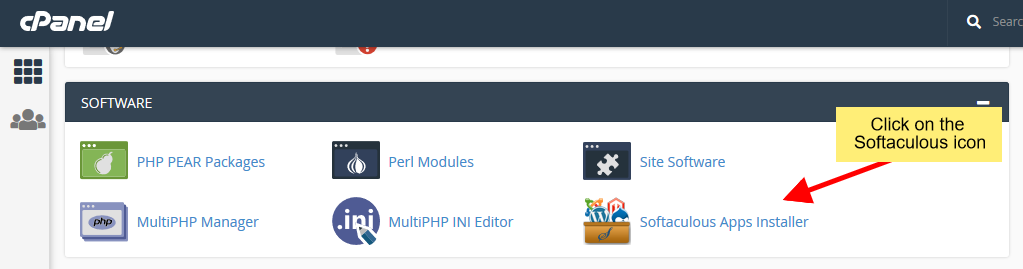
Now search for the Softaculous icon in the control panel as shown in the screenshot below. Once you click on the Softaculous icon, you will be redirected to the Softaculous end user panel.
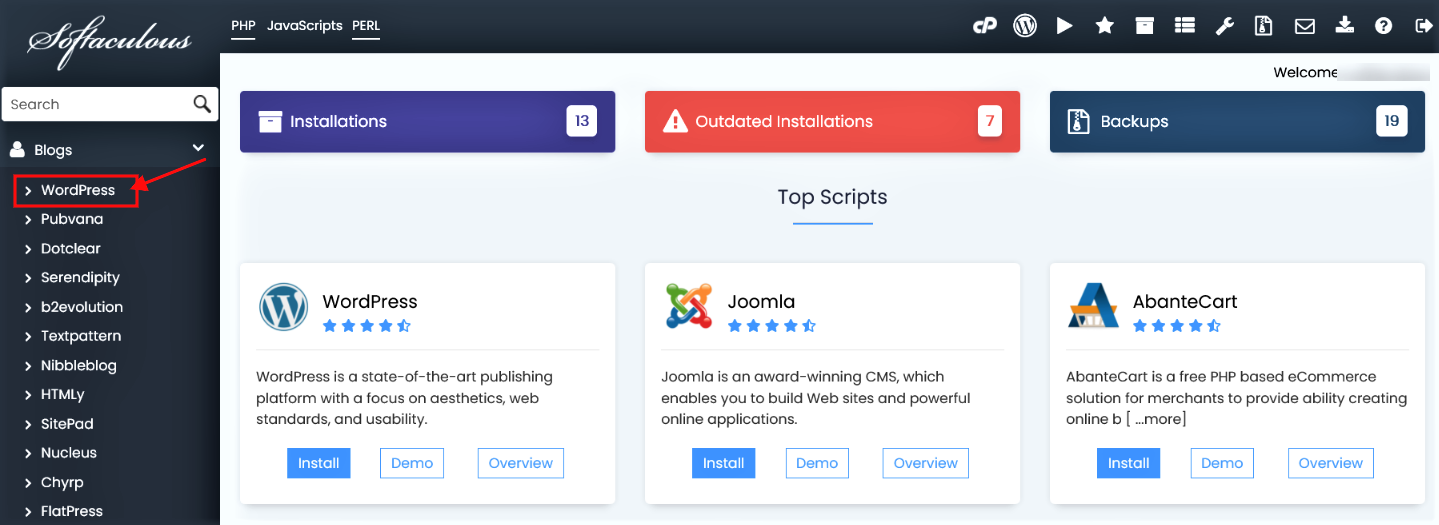
This will take you to the WordPress page, where clicking the Install button will display the installation form.
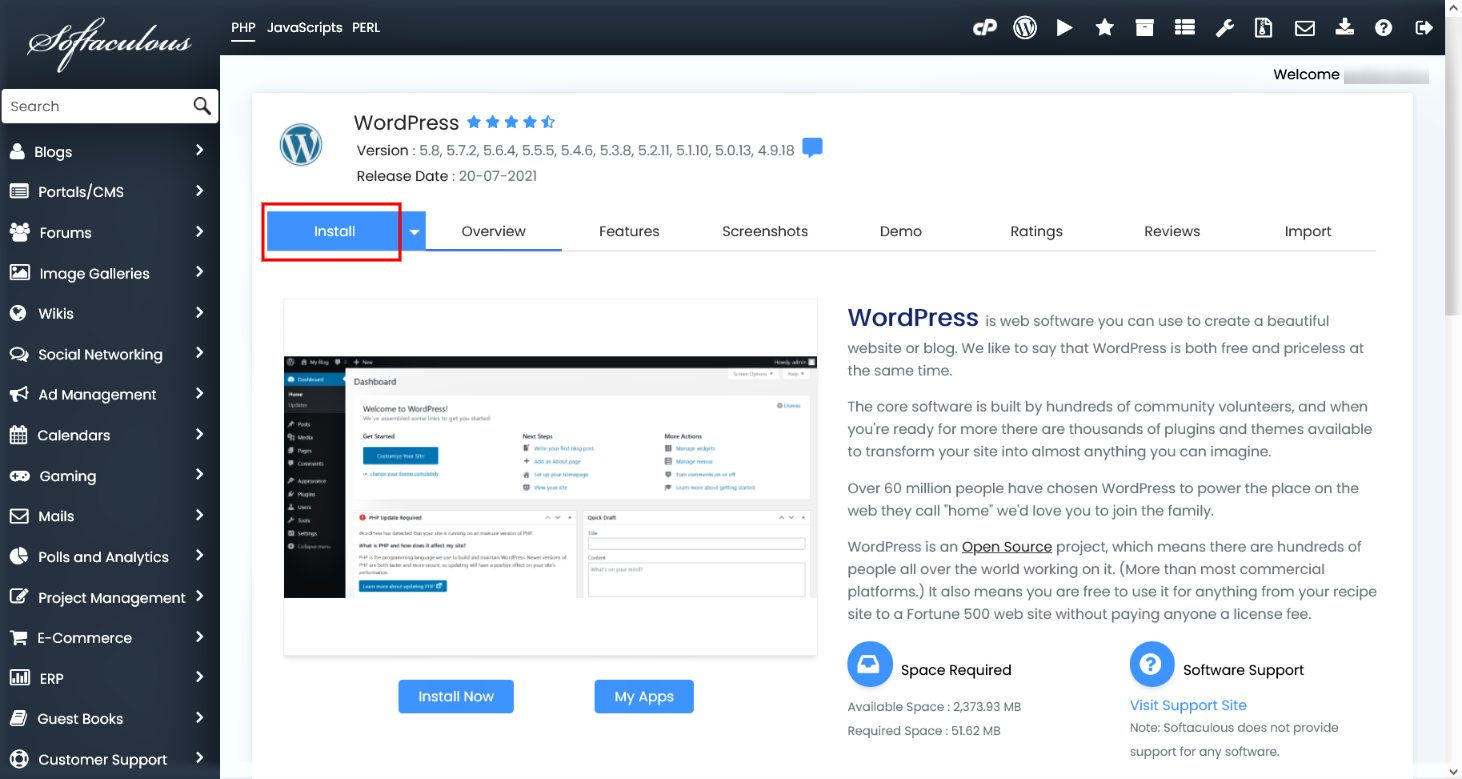
Yükle düğmesine tıkladıktan sonra , aşağıdaki ekran görüntüsünde gösterildiği gibi görüntülenen formu doldurmanız gerekmektedir. Form birçok bilgi ister (varsayılan olarak önceden doldurulmuştur). İsterseniz bu bilgileri değiştirebilir veya olduğu gibi bırakıp varsayılan değerlerle kuruluma devam edebilirsiniz.
Complete the installation form.
After clicking the Install button, you must complete the displayed form as shown in the screenshot below. The form requests a lot of information (pre-filled by default). You can change this information or leave it as is and continue with the installation with the default values.
Select Installation URL: Select the location and folder where you want to install WordPress.
Note: If you want to install WordPress in the document root (e.g., example.com) and not in a subdirectory (e.g., example.com/wp), leave the Within Directory field blank.
Admin Username: Select the username to use for the WordPress administrator account.
Admin Password: Select the password to use for the WordPress administrator account.
Admin Email: Select the email address to use for the WordPress administrator account.
Select Language: Select the language in which you want to install WordPress.
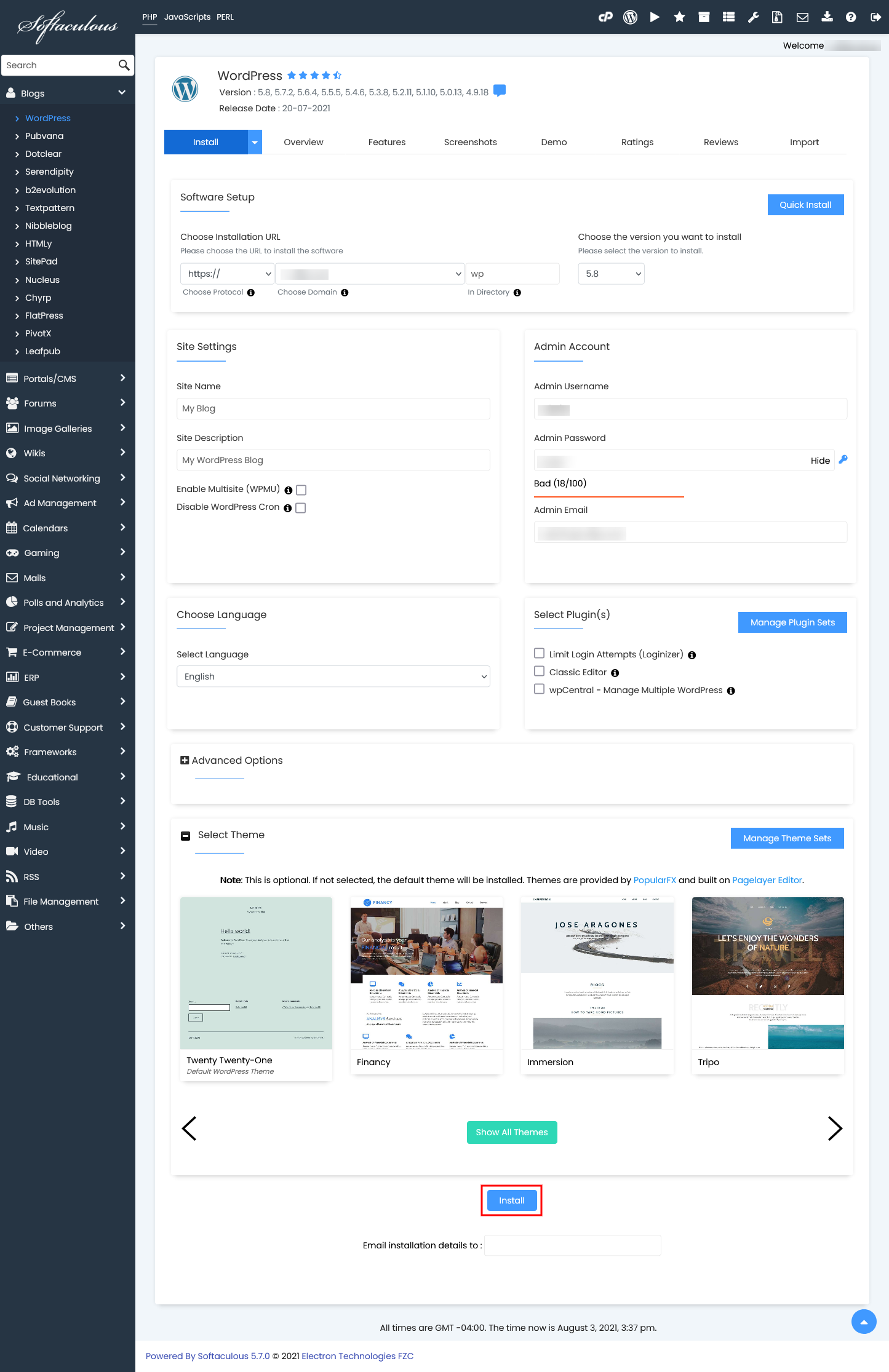
After completing the form, you can start the installation process by clicking the Install button.
Sit back and relax; Softaculous will handle the installation process for you.
Installation Complete
Once the installation is complete, you will see the success message as shown in the screenshot below.
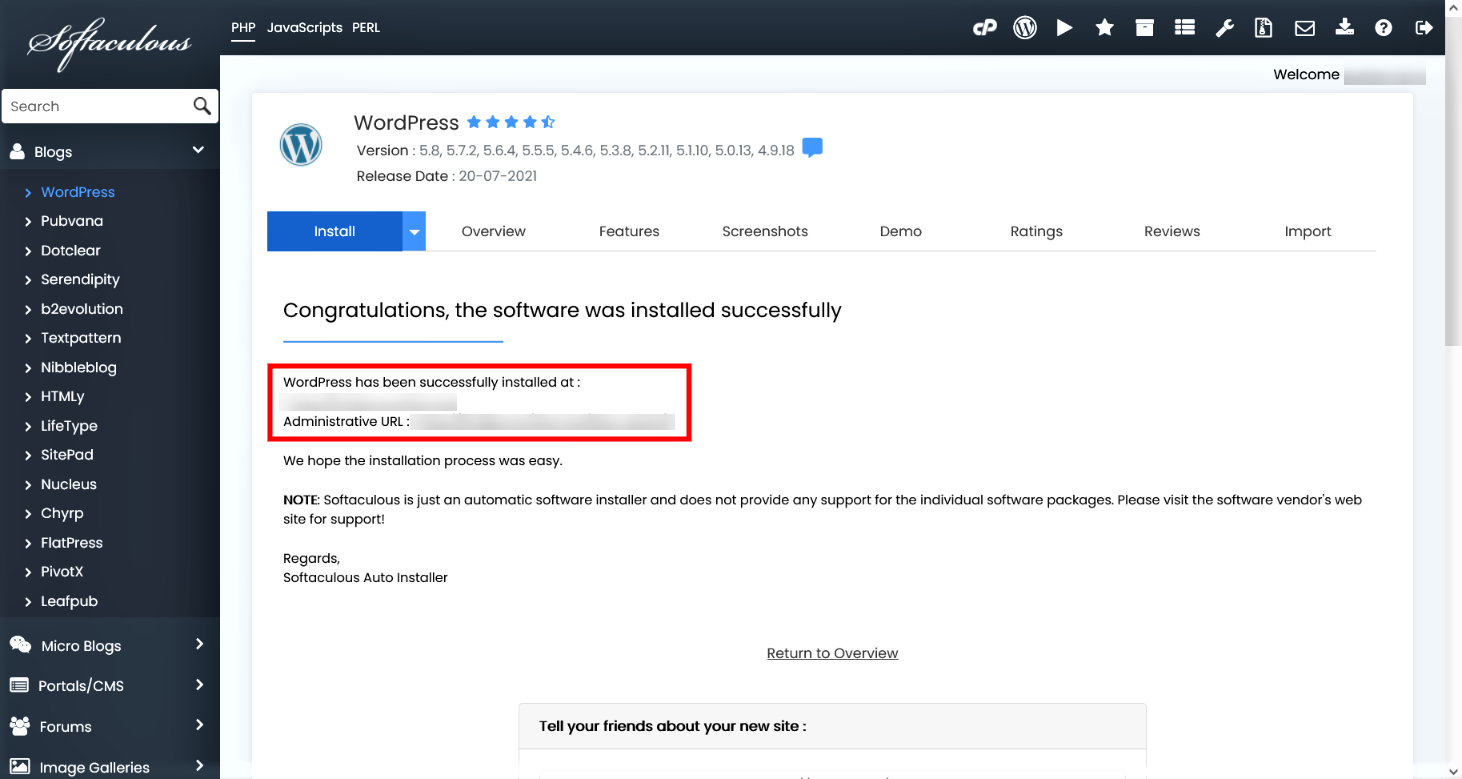
You can then access your WordPress admin panel and/or WordPress site.
We hope the installation process was easy.
Using Softaculous, you can not only install WordPress but also manage the entire lifecycle of your WordPress installation, including upgrading, backing up, restoring, cloning, staging, and more.

 Turkey (Türkçe)