

Merhaba;
Makalemizde ki anlatıma bakarak cPanel Softaculous WordPress nasıl kurulur anlatacağız. Aşağıda ki adımları takip ederek WordPress kurabilirsiniz.
1. Log in to your cPanel account. Then go to the “Software” section and click on “Softaculous App Installer.”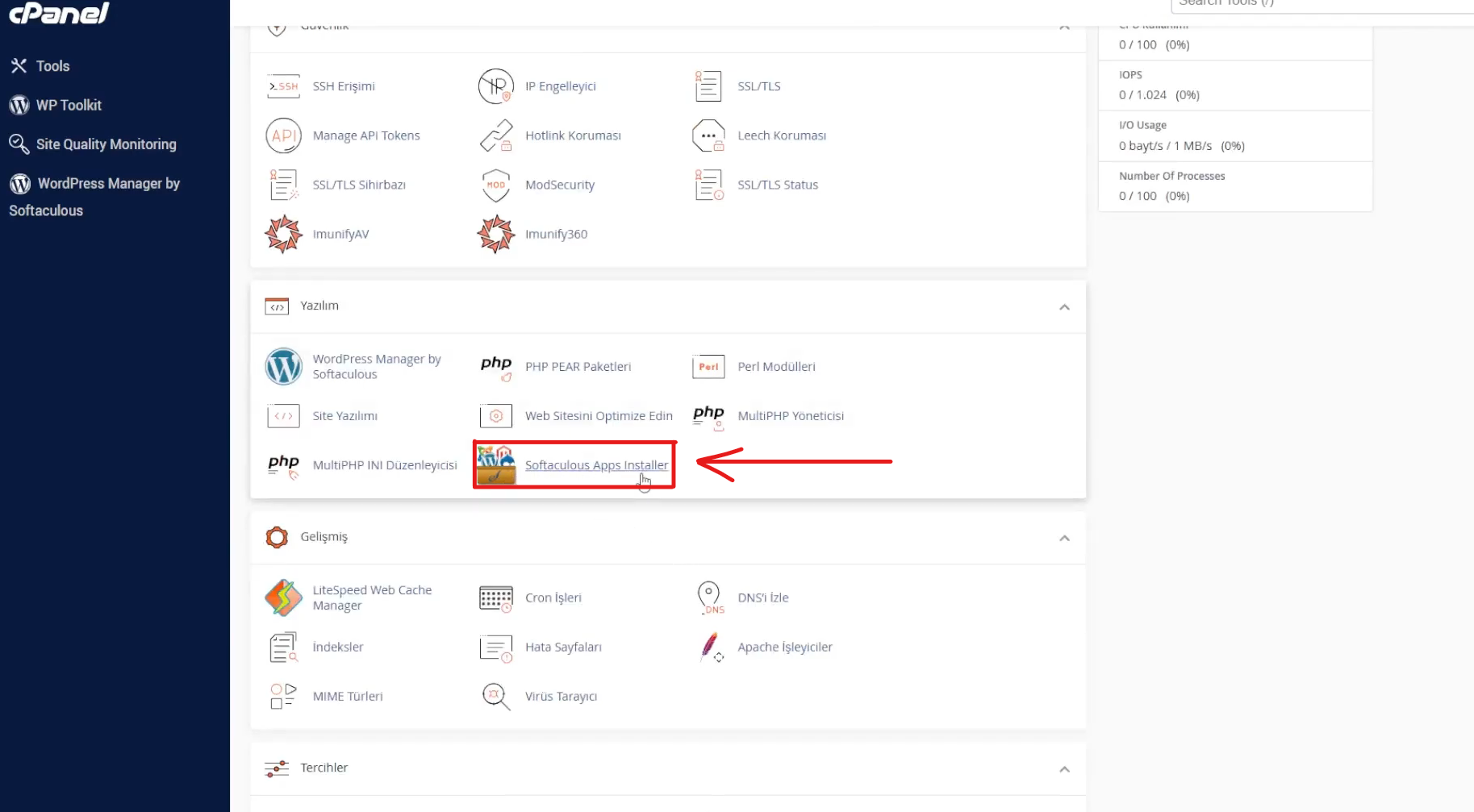
2. On the page that opens, you can choose the software you want to install. Since we want to install WordPress, click the Install button under the WordPress option.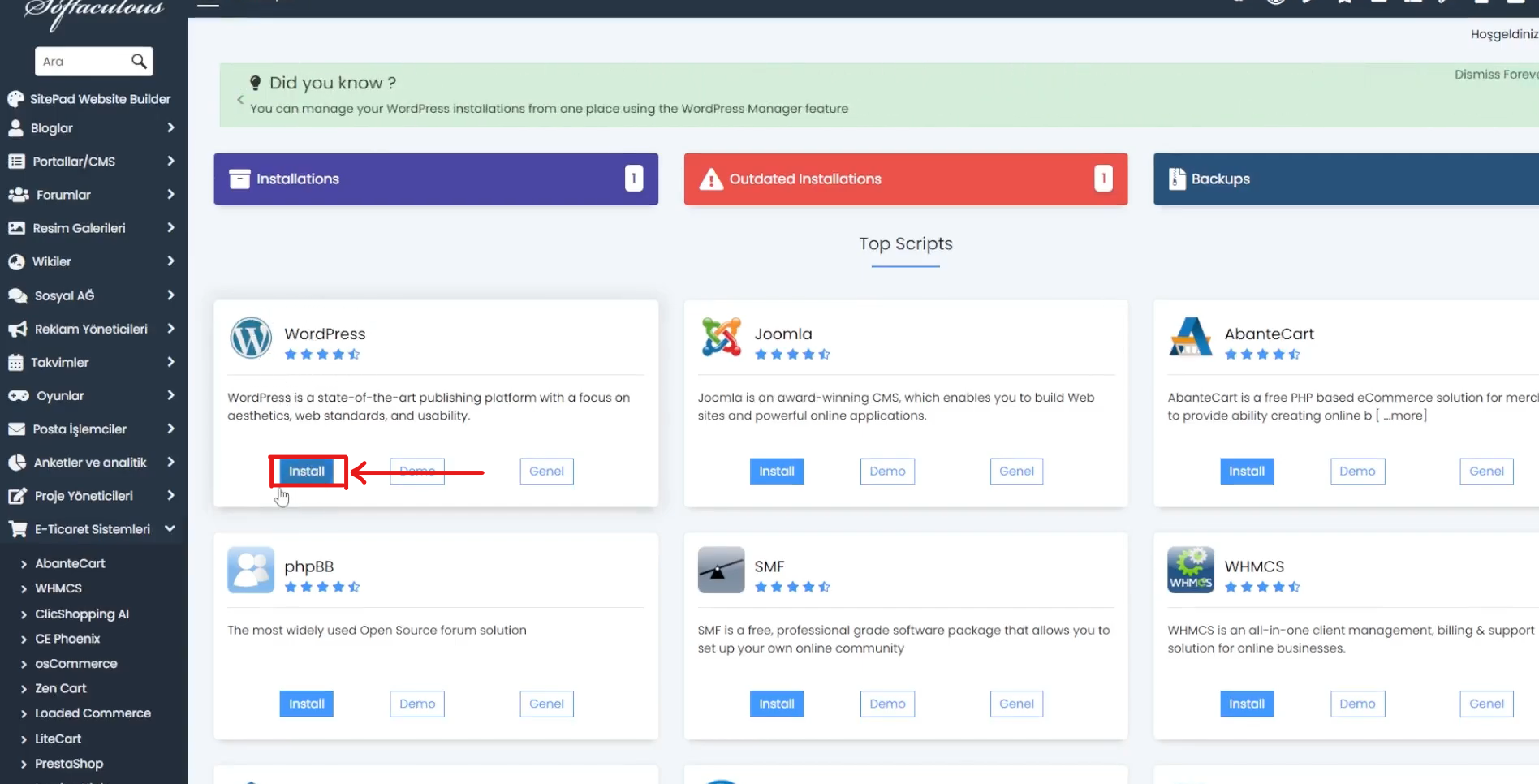
3. On the next page, enter the installation URL at the top. If you have an SSL certificate, select https://, otherwise select http://. If you want to install an SSL certificate, you can check our free SSL installation guide. Then choose whether you want to install WordPress on your main domain or a subdomain, and set the installation directory. You can also select the WordPress version you prefer.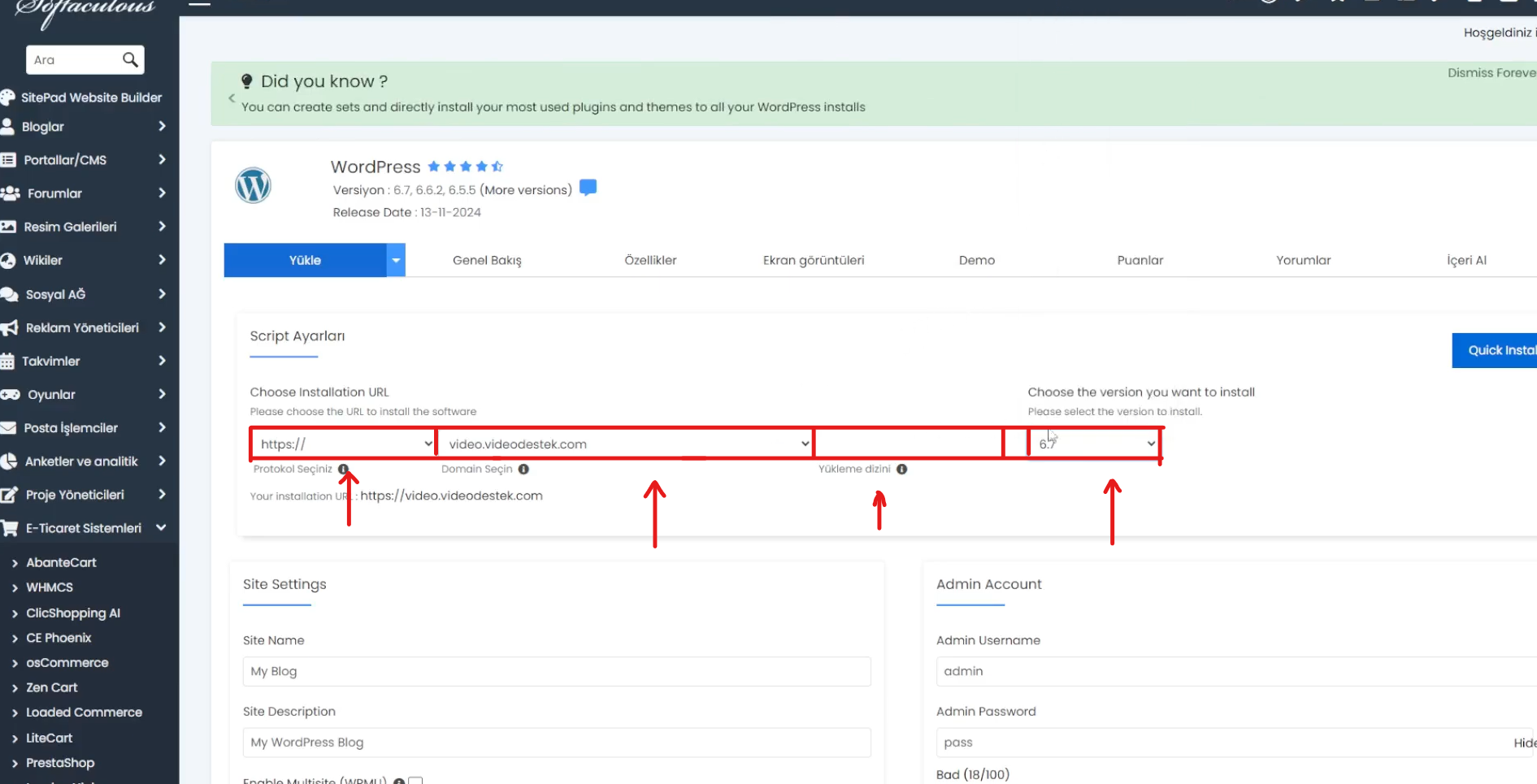
4. In the next section, enter your site name and site description. Under the Admin Account Settings, you can set your admin username and password. Finally, choose the WordPress language and click the Install button at the bottom.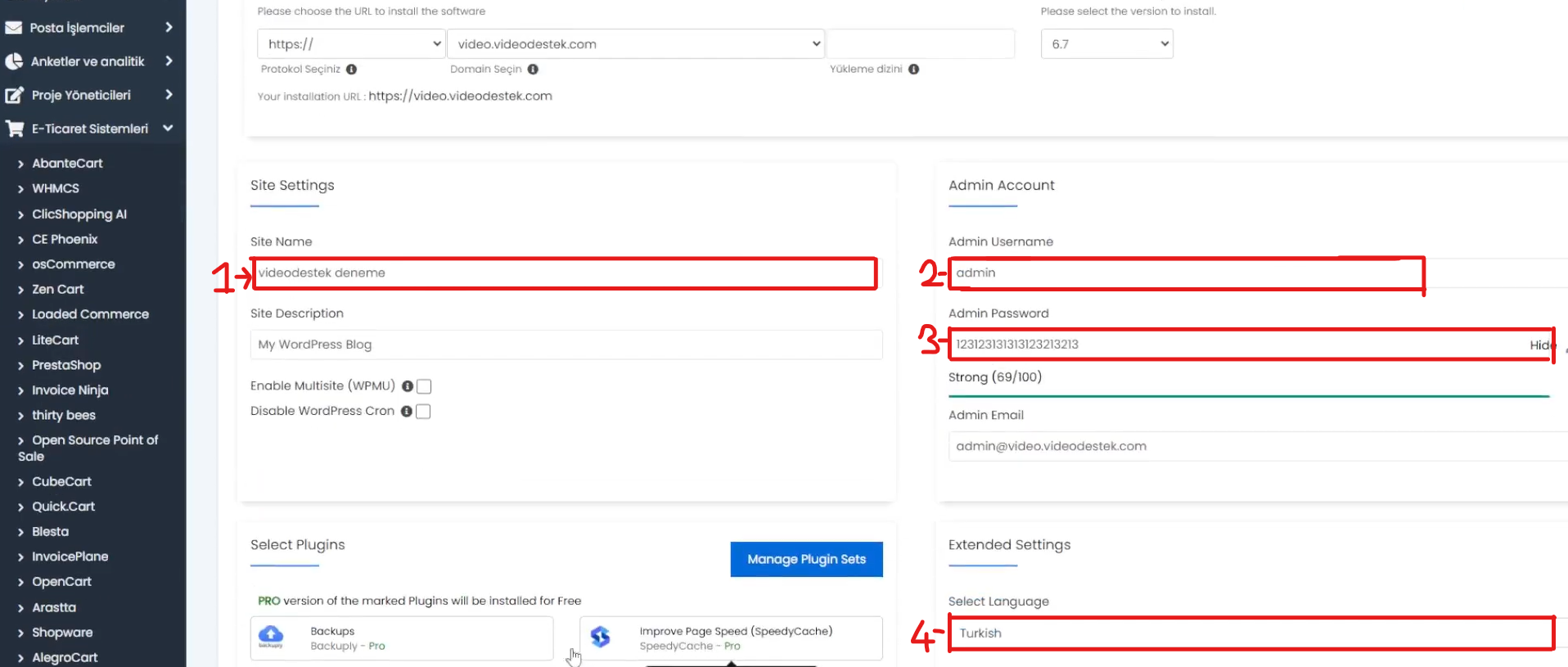

 Turkey (Türkçe)